Users and roles
Everyone who signs in to your Sill dashboard is a member of your account with one of four roles: Owner, Admin, Reviewer or Viewer. Manage the team in Account settings → Team.
Sign-in is by magic link: Sill emails a one-time link and stores no passwords. Each email address belongs to one account; to work in two accounts, use two email addresses.
Sign in for the first time
Section titled “Sign in for the first time”- Enter your email address on the sign-in page.
- Open the one-time link Sill emails you. It is short-lived and works once.
- On a first sign-in, click Create my account. Nothing is created until you click it.
You become the account’s Owner. Your account name and display name start from your email address; change them in Account settings → Profile.
A session lasts up to 14 days and renews while you keep using the dashboard. Signing out ends it immediately.
Invite a teammate
Section titled “Invite a teammate”- Open Account settings → Team and click Invite teammate.
- Enter their Email address and name, and choose a role.
- For a Reviewer or Viewer, choose All sites or Selected sites and tick the sites they may see.
- Click Send invite. They receive a sign-in link by email.
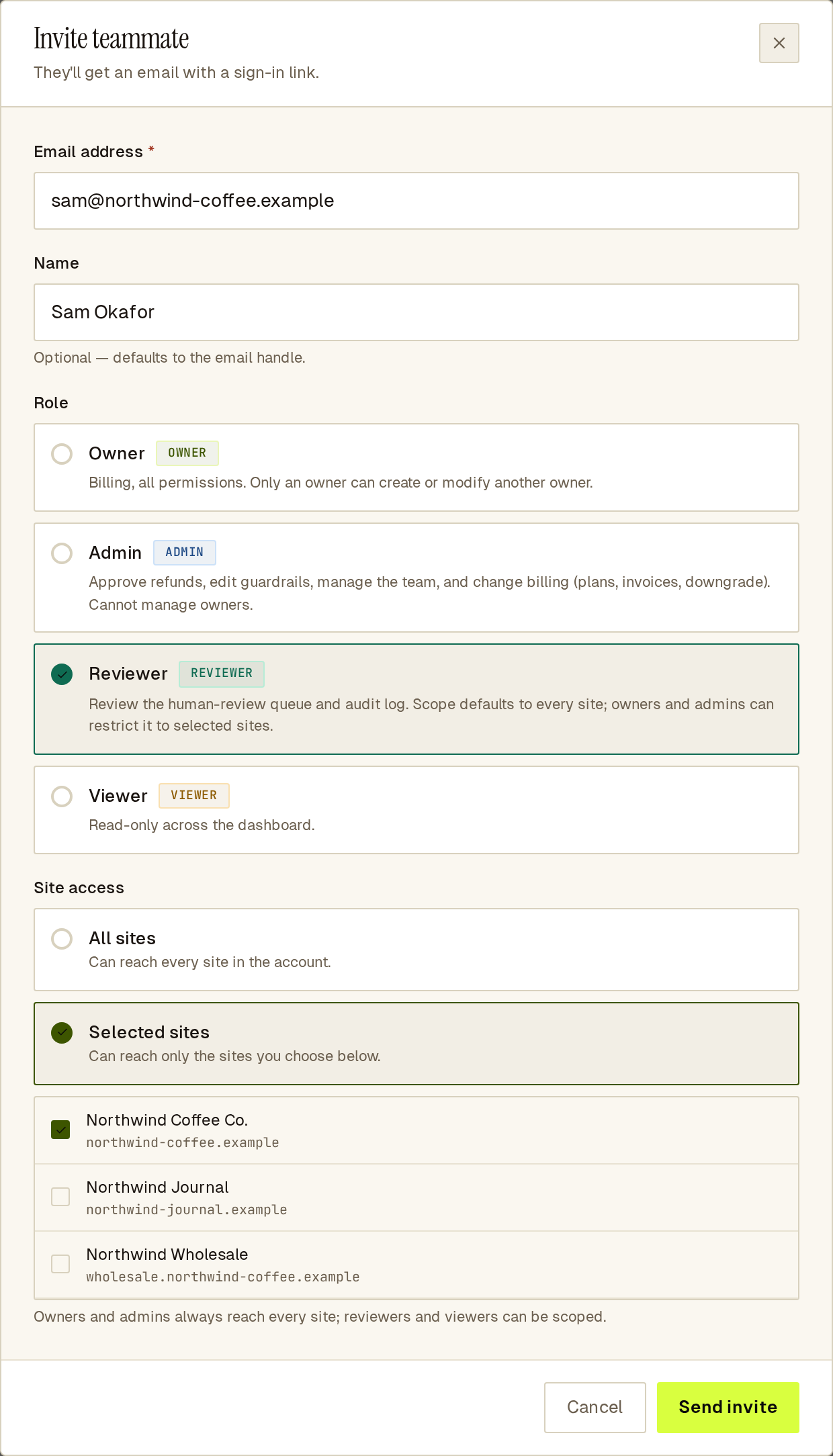 The invite form: a Reviewer limited to one selected site.
Owners and admins always see every site.
What each role can do
Section titled “What each role can do”| Action | Owner | Admin | Reviewer | Viewer |
|---|---|---|---|---|
| View the Overview, sites, agents and Activity | yes | yes | yes | yes |
| Export a signed audit bundle | yes | yes | yes | yes |
| View held orders | yes | yes | yes | no |
| Reveal a held order’s buyer details (recorded in the activity log) | yes | yes | yes | no |
| See a returning visitor’s IP addresses (recorded in the activity log) | yes | yes | yes | no |
| Approve or reject held orders | yes | yes | no | no |
| Publish or change rules | yes | yes | no | no |
| Manage products, custom skills and agent card profile | yes | yes | no | no |
| Add, rename or remove a site | yes | yes | no | no |
| Rotate the site key or proof token, run the domain proof check, resync the site to Sill’s edge | yes | yes | no | no |
| Turn skills on or off | yes | yes | no | no |
| Connect or disconnect a store, payment rail or other integration (Stripe, Shopify, WooCommerce, Slack, Cloudflare), and set buyer-detail retention | yes | yes | no | no |
| Change a site’s allowed origins | yes | yes | no | no |
| Turn returning visitors on or off, or forget a visitor | yes | yes | no | no |
| Dismiss insights on Agents, dismiss a bot recommendation, or Report to network | yes | yes | no | no |
| Opt a site in to Benchmarks, run the red team | yes | yes | no | no |
| Invite, change, suspend or sign out members | yes | yes | no | no |
| Change or remove an owner, or make someone an owner | yes | no | no | no |
| Delete the account | yes | no | no | no |
Reviewers and viewers see these controls hidden or read-only.
An account always keeps at least one active owner: Sill refuses to demote or suspend the last one.
Manage a member
Section titled “Manage a member”Each row in Team has an actions menu. Depending on the member’s status it offers View activity, Change role, Edit site access (reviewers and viewers), Resend invite, Suspend, Reactivate, Sign out everywhere, Deactivate and Delete….
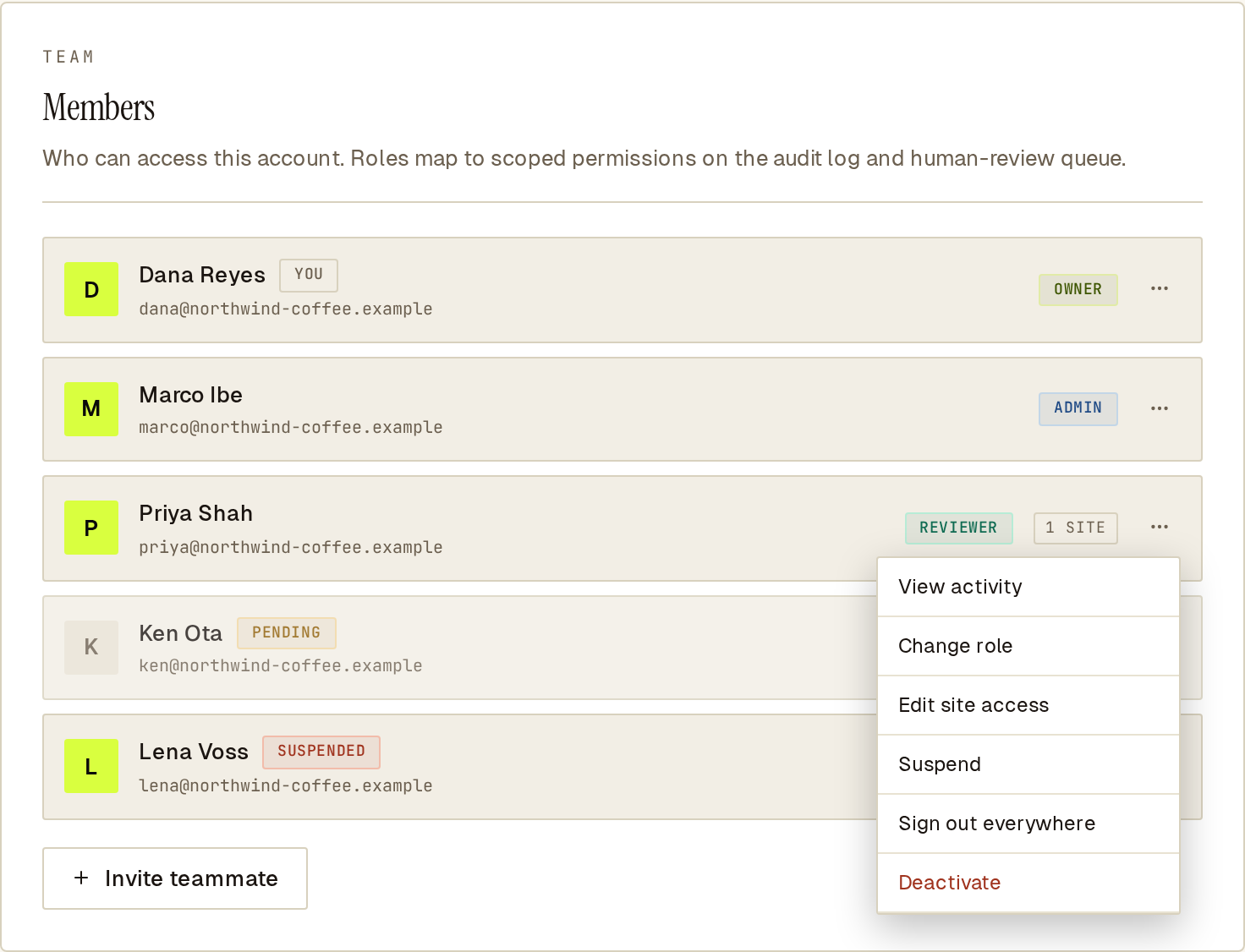 The Team panel with the actions menu open on a member.
You cannot change your own role or status from this menu.
Member status
Section titled “Member status”flowchart LR invited -->|accepts invite| active active -->|Suspend| suspended suspended -->|Reactivate| active invited -->|Deactivate| deactivated active -->|Deactivate| deactivated suspended -->|Deactivate| deactivated deactivated -->|Reactivate| active
- Invited — the invite is sent but has not been accepted. Use Resend invite if it went astray.
- Active — can sign in and use their role.
- Suspended — cannot sign in. Use it for a temporary block; Reactivate restores access.
- Deactivated — cannot sign in. Their history stays. Reactivate, or invite the same email again, to bring them back.
Suspending or deactivating takes effect at once: the member’s existing sessions stop working too. To end an active member’s sessions without suspending them, use Sign out everywhere; see Member activity and sessions.
Delete… removes a member completely and frees their email for a new invite. It works only for someone who never signed in and has no history, such as a mistaken invite. Anyone with history can only be deactivated, so the record of what they did is kept.
Common questions
Section titled “Common questions”What happens to a deactivated member’s history? It stays. Their past actions, decisions on held orders and entries in the activity log remain, attributed to them.
Can an AI agent have a dashboard role? No. Roles are for people. Agents are identified by how they call your site; see Identifying agents.
Is SSO or two-factor sign-in available? No. Sign-in is by magic link only, and the dashboard does not issue API keys.
See also
Section titled “See also”- Member activity and sessions — what each member did, and signing members out.
- Account settings — profile, billing, notifications and deletion.
- Held orders — the review queue reviewers work in.
- Rules — the rules owners and admins publish.