Member activity and sessions
The member activity log records what the people on your team do in the Sill dashboard: who changed a rule, invited a teammate or resolved a held order, when, and from which device and location. It is separate from Activity, which records what agents did.
View a member’s activity
Section titled “View a member’s activity”- Open Account settings → Team.
- Open the actions menu on the member’s row and choose View activity.
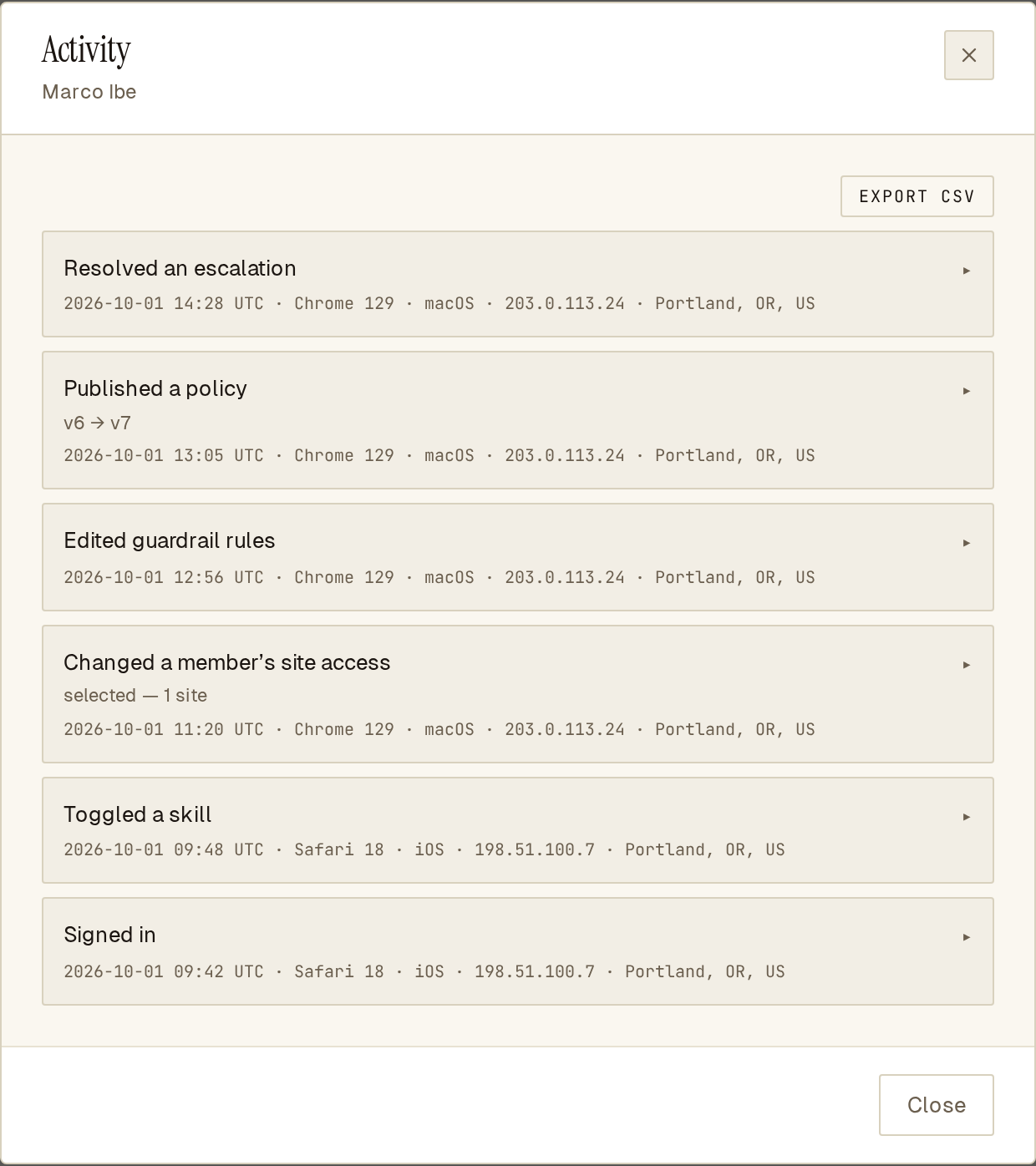 A member’s activity, newest first, with device, approximate location and EXPORT CSV.
Each row shows the action in plain words (for example Changed a member’s status or Connected a payment connector) and when it happened. Open a row for the detail: the exact action, a reference id, the device, the network address and the approximate location.
The view shows the 50 most recent actions. Export for the full history.
Only owners and admins can view or export member activity.
What is recorded
Section titled “What is recorded”- Sign-in — signing in and out, and signing a member out remotely.
- Team — invites and resent invites, role and status changes, site access changes, deleted invites.
- Sites — creating or deleting a site, site settings, allowed origins, rotating a site key, turning a skill on or off, updating the agent card.
- Rules — saving or discarding rule edits, publishing an imported policy, red-team runs.
- Payments — connecting or disconnecting a connector, changing the settlement rail.
- Held orders — resolving an escalation, viewing a held order’s buyer details, running a preflight quote.
- Buyer data — viewing or purging buyer details, changing how long they are kept.
- Account — renaming the account, exporting the activity log.
Changes made by Sill support while helping you appear as Change made by Sill support.
The log records the action and who did it. It never holds buyer names, emails, phone numbers or addresses; it records only that someone viewed them.
Device and approximate location
Section titled “Device and approximate location”Each entry records:
- Device — the browser and operating system, for example Chrome 141 · macOS.
- Network address — the IP address the request came from.
- Approximate location — city, region and country derived from that address, when available.
The location is that of the network, not the person. A VPN or privacy relay shows its own exit location, and some addresses resolve only to a country.
Export the activity log
Section titled “Export the activity log”In a member’s activity view, click EXPORT CSV. The file has one row per action, with the reference id, time, action, network address, browser, operating system, city, region, country and the action’s detail. It downloads to your device.
Exports are themselves recorded in the activity log. The member is not notified when you view or export their activity.
Active sessions
Section titled “Active sessions”Everyone can see their own signed-in sessions in Account settings → Security. Each sign-in creates a session.
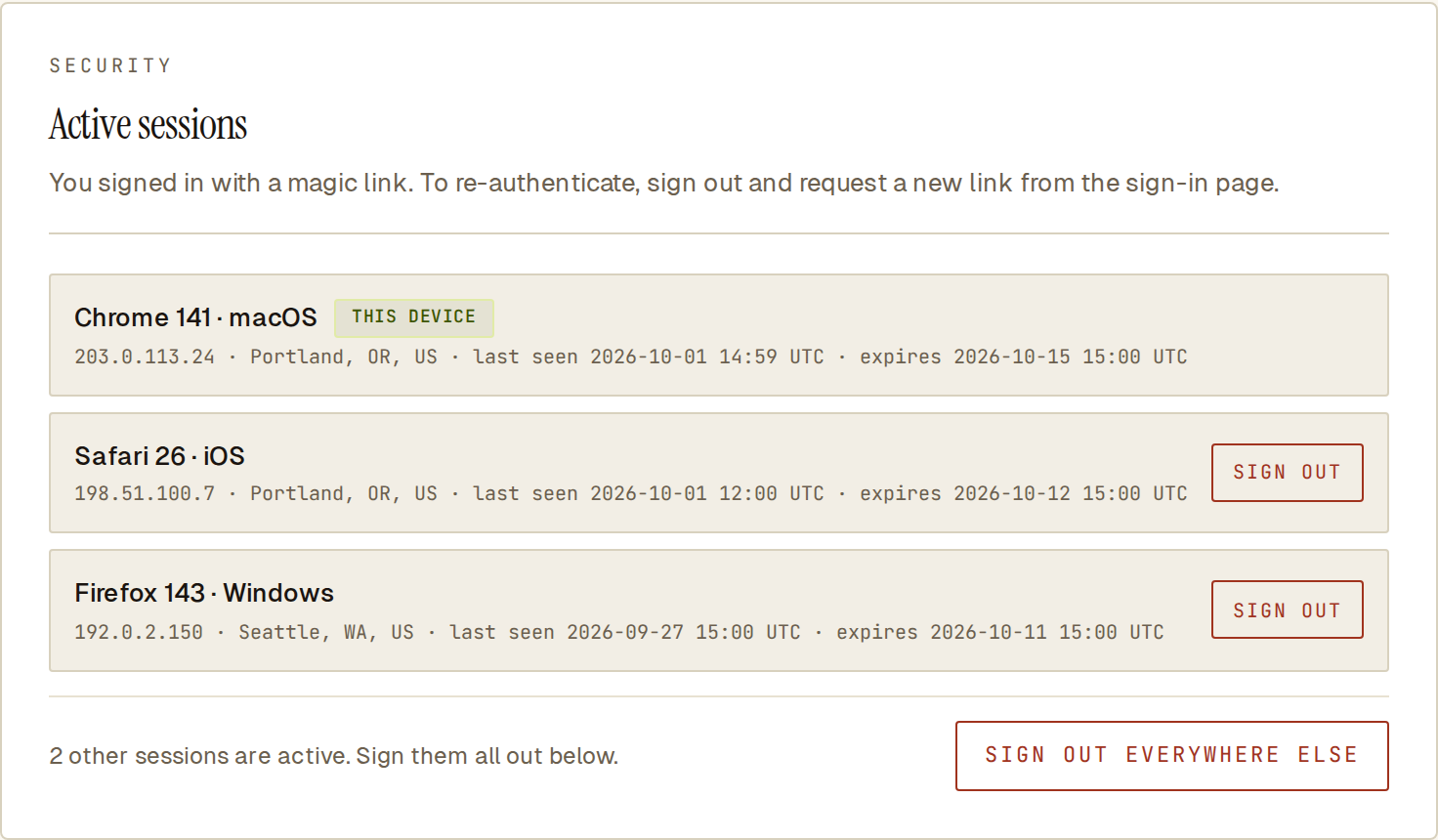 Your sessions, with THIS DEVICE marked and a SIGN OUT button on each other session.
Each session shows the device, the network address and approximate location it is being used from now, when it was last seen and when it expires. THIS DEVICE marks the browser you are using.
- SIGN OUT ends one other session.
- SIGN OUT EVERYWHERE ELSE ends every session except this one.
Both take effect immediately. To end the session you are using, sign out from the account menu.
Sign a member out
Section titled “Sign a member out”Owners and admins can end all of a member’s sessions at once: open the actions menu on their row in Team and choose Sign out everywhere. Use it when someone leaves, loses a device, or their email may be compromised.
- Every session the member has ends immediately, on every device.
- Their role and status do not change, so they can sign in again with a new magic link. To stop that too, Suspend or Deactivate them; see Users and roles.
- Only an owner can sign out another owner.
Common questions
Section titled “Common questions”Why does a session show a different city from where I am? The location comes from the network address. With a VPN or privacy relay you see that service’s location; it updates once you use the dashboard from another network.
Can I delete a member so their email can be invited again? Only if they never signed in and have no history, such as a mistaken invite. Otherwise deactivate them; their history is kept.
See also
Section titled “See also”- Users and roles — roles, invites and member status.
- Account settings — where the Team and Security tabs live.
- Audit log and export — the signed record of agent activity.