Agent-readiness scan widget
The scan widget puts an agent-readiness scan box on your agency’s website. A visitor enters their domain, sees how many checks their site passes and opens the full report. Each scan appears under Agency Portal → Leads, with its report.
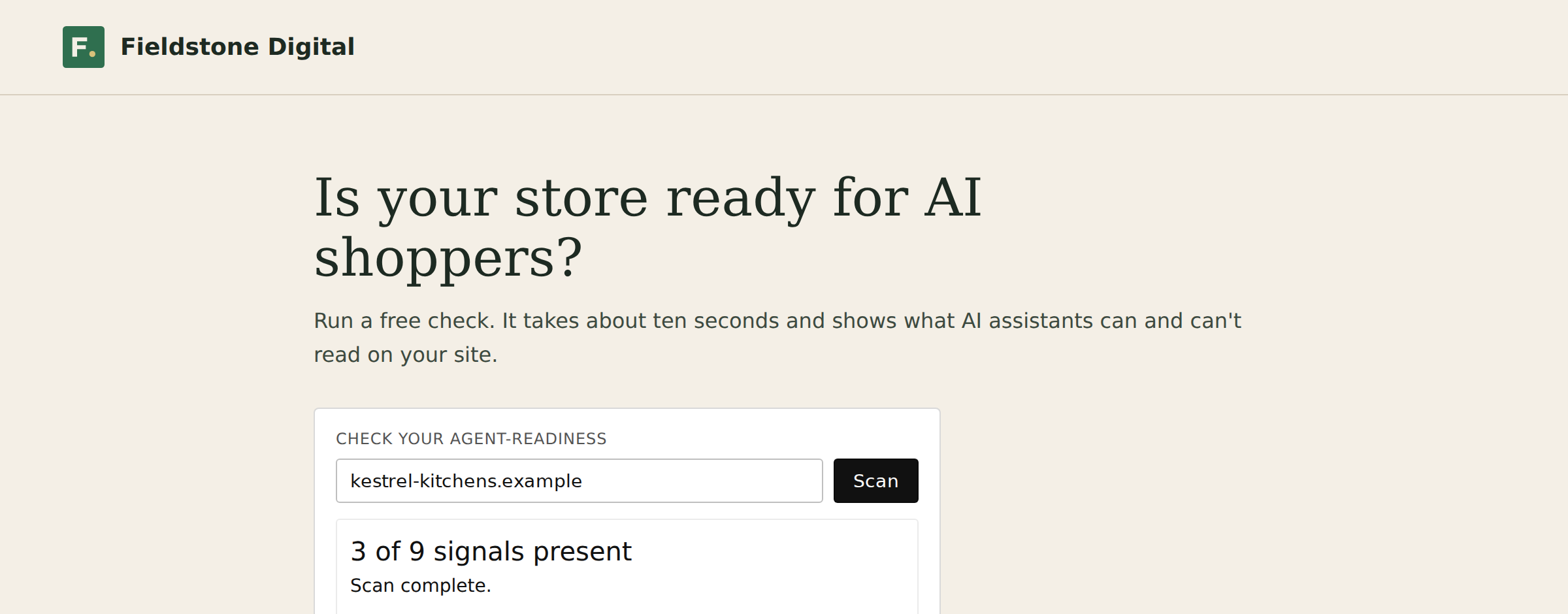 The scan box on an agency’s homepage after a visitor scanned their store.
How do I set up the scan widget?
Section titled “How do I set up the scan widget?”- Open Agency Portal → Scan widget and click Create widget.
- Under Step 1 · Add your websites, enter the address of each site that will show the widget, such as
https://your-agency.com, and click Add. - Under Step 2 · Paste this code before , click COPY.
- Paste the code into your website where the scan box should appear, and publish the page.
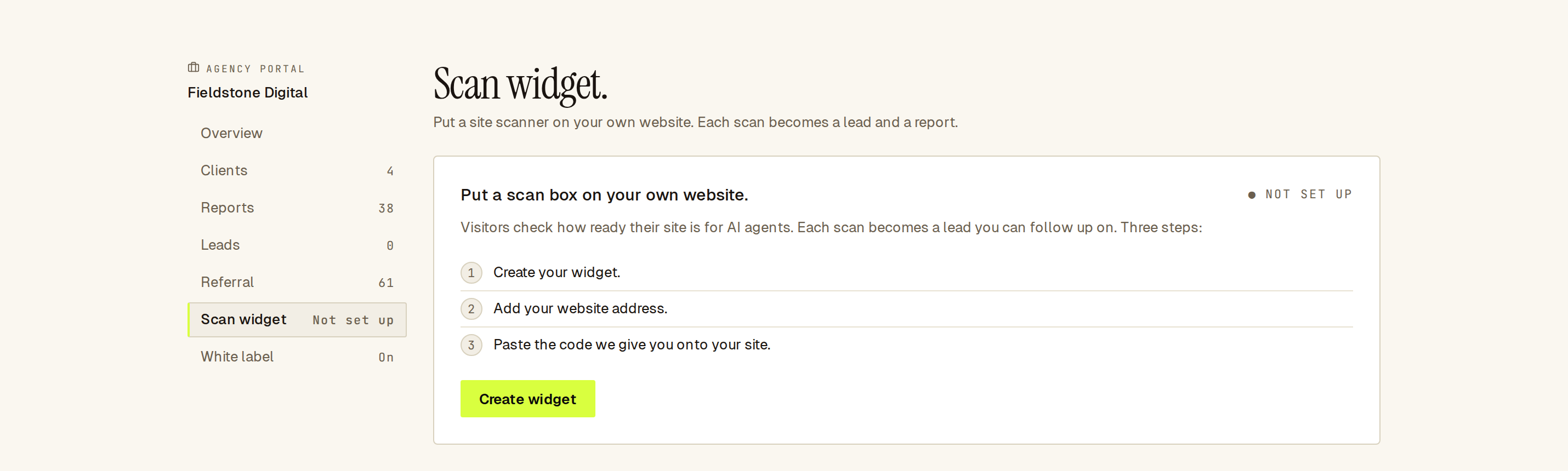 Before setup: three steps, starting with Create widget.
The code looks like this, with your own widget key:
<div data-sill-widget="whl_…"></div><script src="https://sill.so/widget/scan.js?v=2" async></script>The <div> marks where the box appears. You can place it on several pages.
Which websites can run my widget?
Section titled “Which websites can run my widget?”Only the sites you list under Step 1. Add every address the page is served from: https://your-agency.com and https://www.your-agency.com count as two. Addresses must use HTTPS, and you can list up to 10.
To stop the widget on a site, click Remove next to it.
How do I know it is working?
Section titled “How do I know it is working?”The status next to Step 1 tells you:
| Status | Meaning |
|---|---|
| Not set up | You have not created the widget yet. |
| Add your website | The widget exists, but no website is listed. |
| Waiting for first scan | Ready. Run a scan on your own page to test it. |
| Working · last scan … | Scans are coming in. |
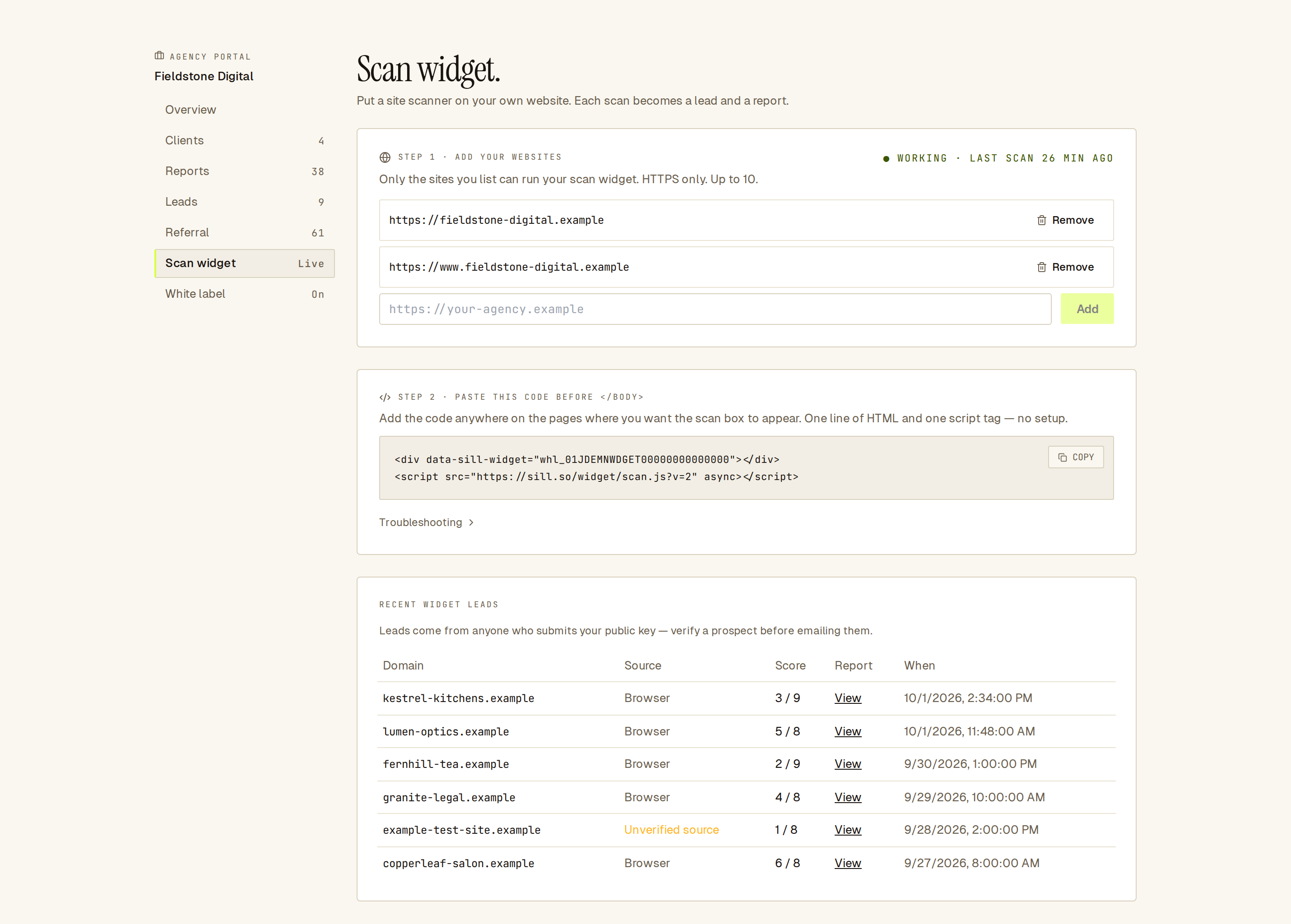 A working widget: your websites, the code to paste and recent leads.
Where do I see the leads?
Section titled “Where do I see the leads?”Recent widget leads on the Scan widget page and Agency Portal → Leads list each scan: the domain, the checks it passes, when it was scanned and a link to the report.
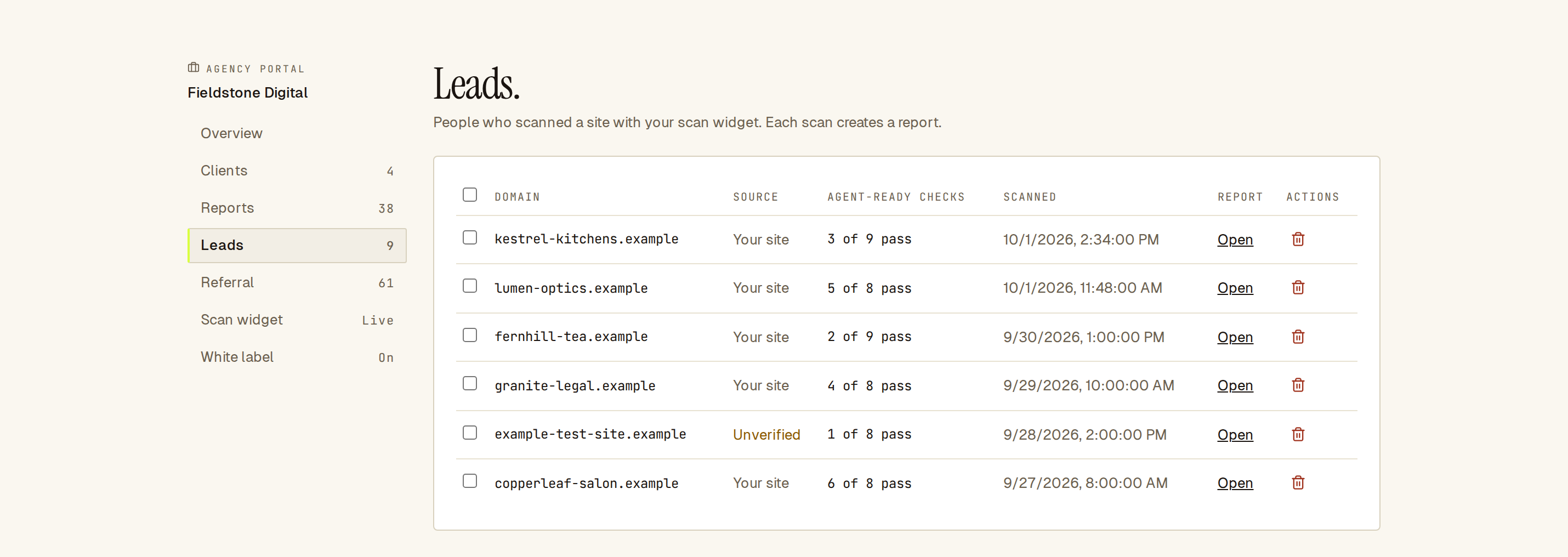 Leads: every site scanned with your widget.
The widget asks visitors for a domain only. It does not collect names or email addresses.
Source shows Unverified (or Unverified source) when a scan did not come from a normal web browser. Your widget key is visible in your page’s code, so anyone can submit scans with it. Check a prospect before you contact them.
Reports from the widget carry your agency’s branding. See White label.
How do I delete leads?
Section titled “How do I delete leads?”In Agency Portal → Leads:
- To delete one lead, click its trash icon and confirm with Delete.
- To delete several, tick their checkboxes (or the box in the header to select all), click Delete {n} and confirm.
Deleting removes the lead from your Leads list and can’t be undone. Use it to clear out test scans or unverified entries.
How many scans can the widget run?
Section titled “How many scans can the widget run?”Up to 25 a day. This is separate from the allowance you use in Reports. When it is used up, visitors see a message that the scanner is unavailable, and scans resume as the 24-hour window moves on.
Troubleshooting
Section titled “Troubleshooting”The box does not appear. Check that you published the page with both lines of the code. If your site blocks outside styles, ask your developer to allow inline styles for the widget, or place the code after your main content.
The box appears, but scans fail.
Check that the exact address in your browser’s address bar, including www. if it has one, is listed under Step 1.
A visitor’s scan says the site could not be reached. The visitor’s site did not respond to Sill. Ask them to try again, or scan it from Reports.