Install Sill on Shopify
On Shopify, Sill installs as an app with one connect. Connecting adds the embed script to your storefront, verifies the store, serves your signed agent card through the Shopify app proxy, and syncs your catalog and orders so agents can read them.
Shopify gives apps no way to see requests on the server, so one layer is out of reach: crawlers that fetch pages without running JavaScript. Sill still records them whenever they call Sill directly (the agent card, MCP server or catalog). See What each install covers.
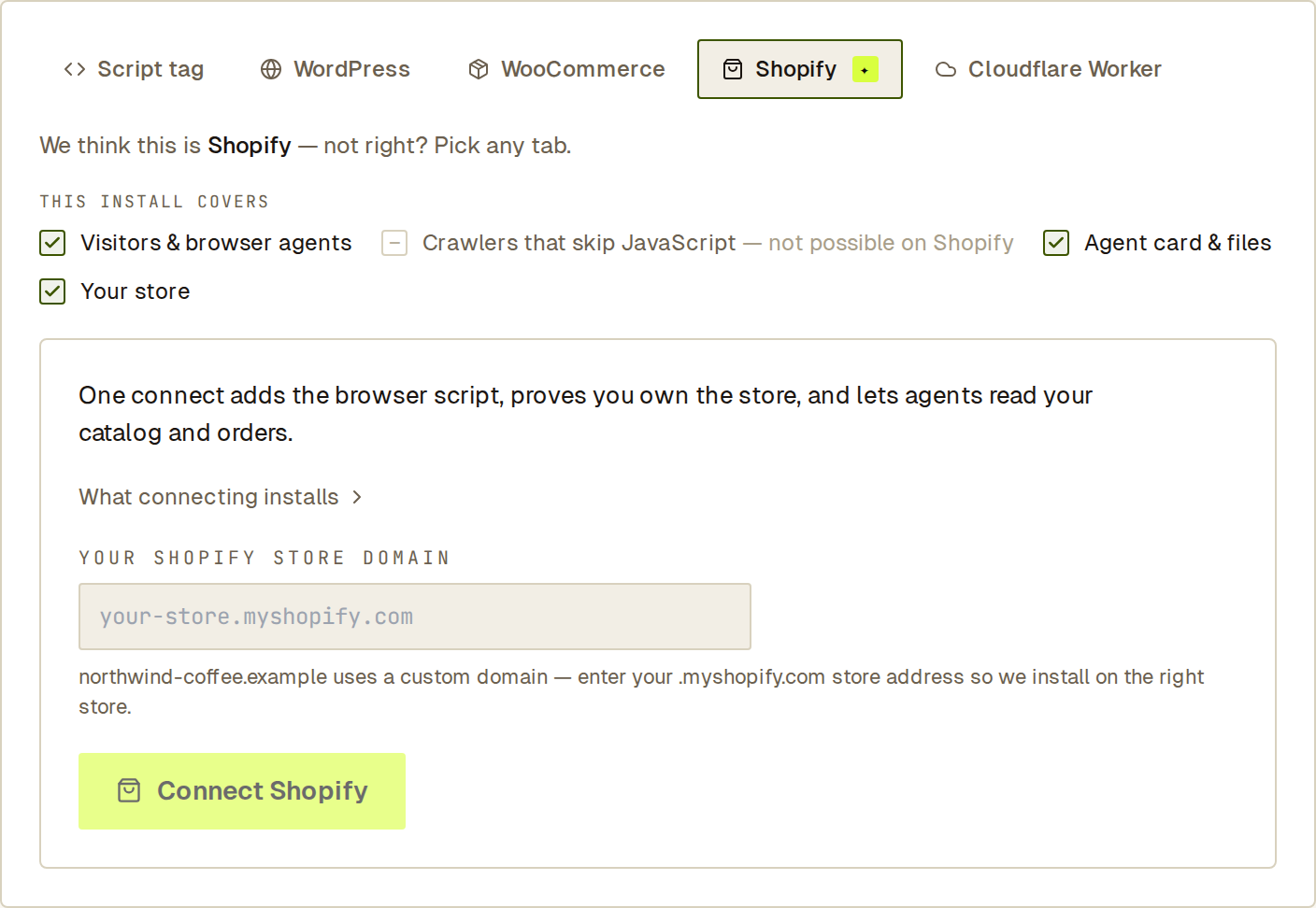 The Shopify tab in onboarding. On a custom domain, enter the store’s .myshopify.com address first.
Step 1 — Connect Shopify
Section titled “Step 1 — Connect Shopify”- In Sill onboarding, open the Shopify install tab (Sill selects it when it detects Shopify). For a site you already added, open Settings → Integrations → Shopify.
- If your store uses a custom domain, enter its
.myshopify.comaddress under YOUR SHOPIFY STORE DOMAIN. - Click Connect Shopify. Shopify opens its app install screen in the same tab; sign in to the store’s admin if asked.
- Approve the install. Shopify sends you back to Sill with the store connected.
If your access changes while you are on Shopify’s screen (your role is no longer owner or admin, the account is suspended or closed, or the site is deleted), the connection is not saved and Sill shows Could not finish connecting Shopify: Your access changed while this connection was in progress, so it was not saved. Ask an owner or admin to connect again.
The connect:
- adds the embed script to every storefront page, so visitors and browser agents are seen;
- records the store as verified — there is no separate domain step;
- syncs your catalog and orders so agents can read products, availability, order status and shipments.
Step 2 — Check that it worked
Section titled “Step 2 — Check that it worked”Your signed agent card is served through the Shopify app proxy on your store domain:
https://your-store.myshopify.com/apps/sill/agent-card.jsonAnyone can check its signature against the public JWKS. Sill also publishes a short discovery document at https://edge.sill.so/v1/store/your-store.myshopify.com/agent-card.json that links to the signed card and your MCP server.
In Sill, Settings → Install → How Sill is installed shows:
| Row | Status on a connected Shopify store |
|---|---|
| Visitors & browser agents | live after the first storefront page view |
| Crawlers that skip JavaScript | not available on Shopify — protocol traffic is still recorded |
| Agent card & files | served from the Sill app proxy — Shopify reserves /.well-known |
| Your store | Shopify connected |
Step 3 — Turn on orders and refunds
Section titled “Step 3 — Turn on orders and refunds”Reads work as soon as the store is connected. To let agents place orders and request refunds:
- Stripe — connect your Stripe account under Settings → Integrations to turn on
place_orderandrequest_refundon the Stripe rail. See Connect payments. - Shopify checkout — orders can also settle through Shopify itself. This runs in test mode only.
What a Shopify install cannot cover
Section titled “What a Shopify install cannot cover”- Crawlers that skip JavaScript. Shopify has no server-side hook, so these visits are recorded only when the crawler calls one of Sill’s endpoints directly.
/.well-known/agent-card.jsonon your store domain. Shopify reserves/.well-known/, so tools that only look there will not find the card. The embed adds<link>tags that point to the card, but only agents that run JavaScript see them; other tools need the app-proxy address above.
See also
Section titled “See also”- What each install covers — layers and the minimum install for each kind of site.
- Agent card — what the signed card contains.
- Identifying agents — how Sill classifies visitors.
- Connect payments — the Stripe rail.