Get your agent recognised by Sill
Merchants use Sill to see which AI agents visit their stores and whether each one is who it says it is. If you run an AI agent, you can register it with Sill so that requests signed with your keys are recognised as yours on the sites Sill protects. Sill checks the signatures itself against keys you registered, and every key change is recorded in a public history.
How it works
Section titled “How it works”- You sign in to the enrollment page with your work email.
- You prove you control your company’s domain.
- You register your agents: the name each one sends in its
User-Agentheader and the page on your domain that documents it. - You upload one or more Ed25519 public keys. Your private keys never leave your systems.
- A person at Sill reviews the enrollment. Until it is approved, your keys are not honoured anywhere.
- Your agents sign their requests and name Sill as the place your keys are published.
1. Sign in
Section titled “1. Sign in”Sign in at api.sill.so/agent-operators with your work email. The portal emails you a one-time sign-in link that works once and expires after 15 minutes. If a link has expired, enter your email again and select Email me a sign-in link to get a fresh one. This account is separate from any Sill merchant account you may have.
While Sill is still rolling the enrollment portal out, access may be invitation-only. If the portal says enrollment is by invitation, contact Sill from sill.so and we will add your address.
2. Prove you control your domain
Section titled “2. Prove you control your domain”Under Company, set your company name and a short name. The portal suggests a short name from your company name as you type and shows the resulting signer URL (https://edge.sill.so/agents/<short name>). The short name becomes part of the address your agents sign with, so pick it carefully: it cannot be changed after you submit. Use 3 to 40 lower-case letters, digits or single hyphens.
Under Domain, enter the domain named in your public crawler or agent documentation and select Save domain. Sill shows a verification value such as sill-agent-verify=…. Publish it in one of two ways, then select Check DNS or Check HTTPS:
| Method | What to publish |
|---|---|
| DNS | A TXT record at _sill-agent-verify.<your domain> whose value is the verification value. |
| HTTPS | A file at https://<your domain>/.well-known/sill-agent-verification.txt containing the verification value on its own line. The file must be served directly, without a redirect. |
DNS changes can take a while to appear. You can check again after a few minutes.
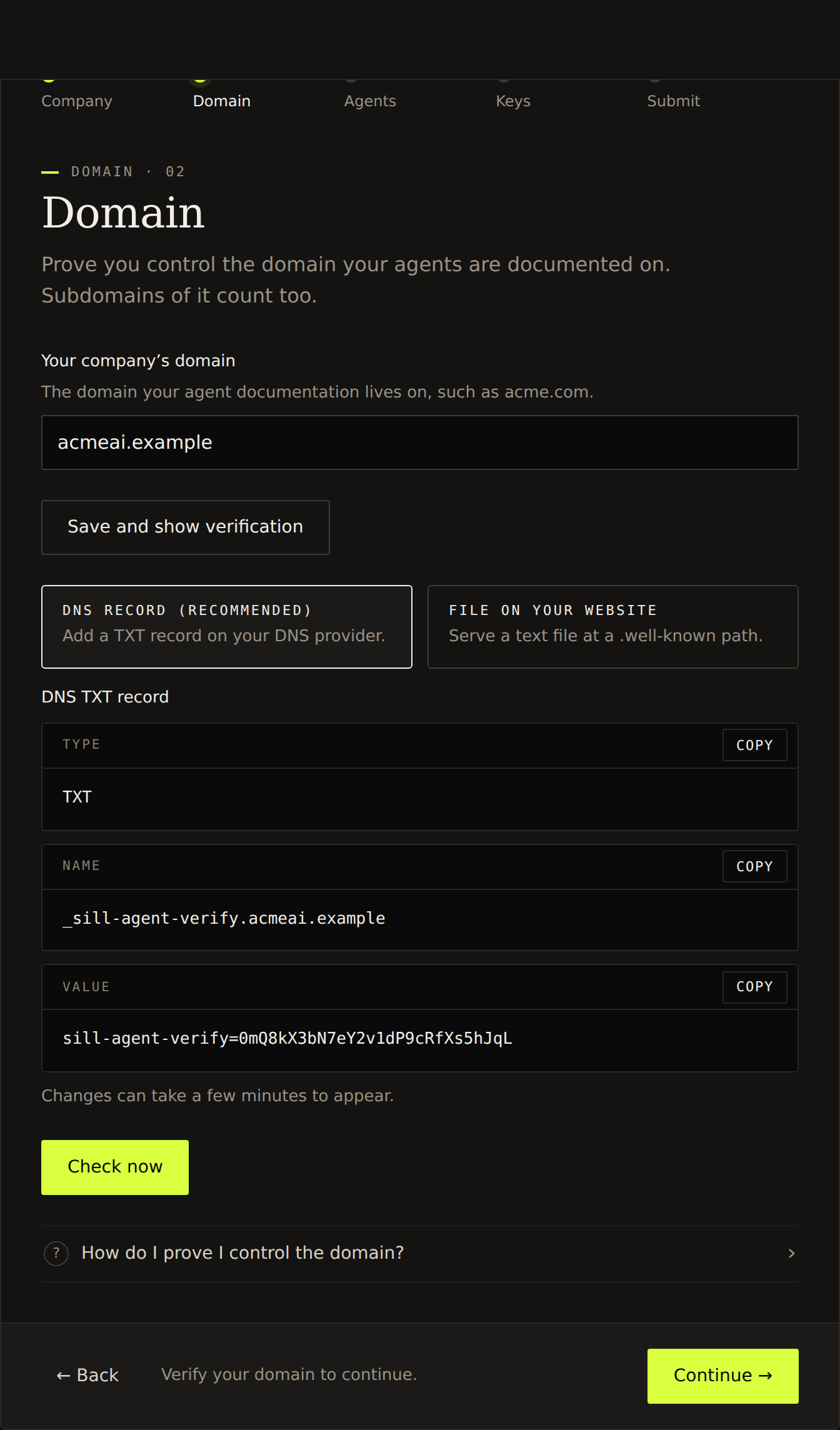 Domain step: copy the TXT record details and add them at your DNS provider, then select Check now.
3. Register your agents
Section titled “3. Register your agents”Under Agents, add each agent with:
- a display name;
- the page on your verified domain (or a subdomain of it) that documents the agent;
- the names it sends in its
User-Agentheader. You can paste a full User-Agent string and the portal pulls each product token out, or type names separated by commas, spaces or newlines.
For example, Mozilla/5.0 (compatible; AcmeBot/1.0; +https://acme.example/bot) becomes an AcmeBot token; Sill-Readiness/1 (+https://sill.so/bot) becomes Sill-Readiness. Versions are stripped.
Each name can belong to one company only; Sill checks this when it reviews your agents. Names that match well-known agents already in Sill’s registry are approved only after Sill confirms your company runs them. Generic browser names such as Mozilla or Chrome cannot be registered. Agents you add after approval are reviewed before they count.
4. Upload your public keys
Section titled “4. Upload your public keys”Under Public keys, paste an Ed25519 public key in any of these forms:
- a JWK:
{"kty":"OKP","crv":"Ed25519","x":"…"} - the raw 32-byte key in base64 or base64url
- 64 hexadecimal characters
- a PEM
PUBLIC KEYblock
Paste public keys only. Sill refuses anything that contains a private key. You can hold up to five keys that are not revoked.
To show the key is yours, select Get a challenge to sign, sign the exact challenge text (UTF-8, no trailing newline) with the matching private key using Ed25519, paste the base64 signature and select Add key. The challenge expires after 15 minutes.
The portal shows the same snippets inline. The three recipes below produce the signature Sill accepts.
OpenSSL
Section titled “OpenSSL”# Generate a key pair (keep private.pem on your side):openssl genpkey -algorithm ED25519 -out private.pemopenssl pkey -in private.pem -pubout -out public.pem
# Sign the exact challenge text, with no trailing newline:printf '%s' '<challenge text>' > challenge.txtopenssl pkeyutl -sign -inkey private.pem -rawin -in challenge.txt | base64 | tr -d '\n'Node.js (node:crypto, no npm dependency)
Section titled “Node.js (node:crypto, no npm dependency)”import { generateKeyPairSync, sign } from 'node:crypto';
const { privateKey, publicKey } = generateKeyPairSync('ed25519');// Public key as a JWK you can paste into the portal:console.log(JSON.stringify(publicKey.export({ format: 'jwk' })));
// Sign the challenge:const challenge = '<challenge text>';const signature = sign(null, Buffer.from(challenge, 'utf8'), privateKey) .toString('base64');console.log(signature);Python (cryptography)
Section titled “Python (cryptography)”from cryptography.hazmat.primitives.asymmetric.ed25519 import Ed25519PrivateKeyfrom cryptography.hazmat.primitives import serializationimport base64
private_key = Ed25519PrivateKey.generate()public_bytes = private_key.public_key().public_bytes( encoding=serialization.Encoding.Raw, format=serialization.PublicFormat.Raw,)print(base64.urlsafe_b64encode(public_bytes).rstrip(b"=").decode())
challenge = "<challenge text>"sig = private_key.sign(challenge.encode("utf-8"))print(base64.b64encode(sig).decode())Each key’s id is its JWK thumbprint (RFC 7638), shown in the key list. That is the keyid your agents put in their signatures.
Rotate and revoke keys
Section titled “Rotate and revoke keys”- Rotate: add the new key, switch your agents to it, then select Retire (rotate) on the old key and choose how many hours it should keep working (up to 30 days). You always keep at least one active key.
- Revoke: select Revoke now if a key may be compromised. Signatures made with it stop counting at once. A revoked key can never be registered again.
Every addition, retirement and revocation is added to your public key history (see Check your key history).
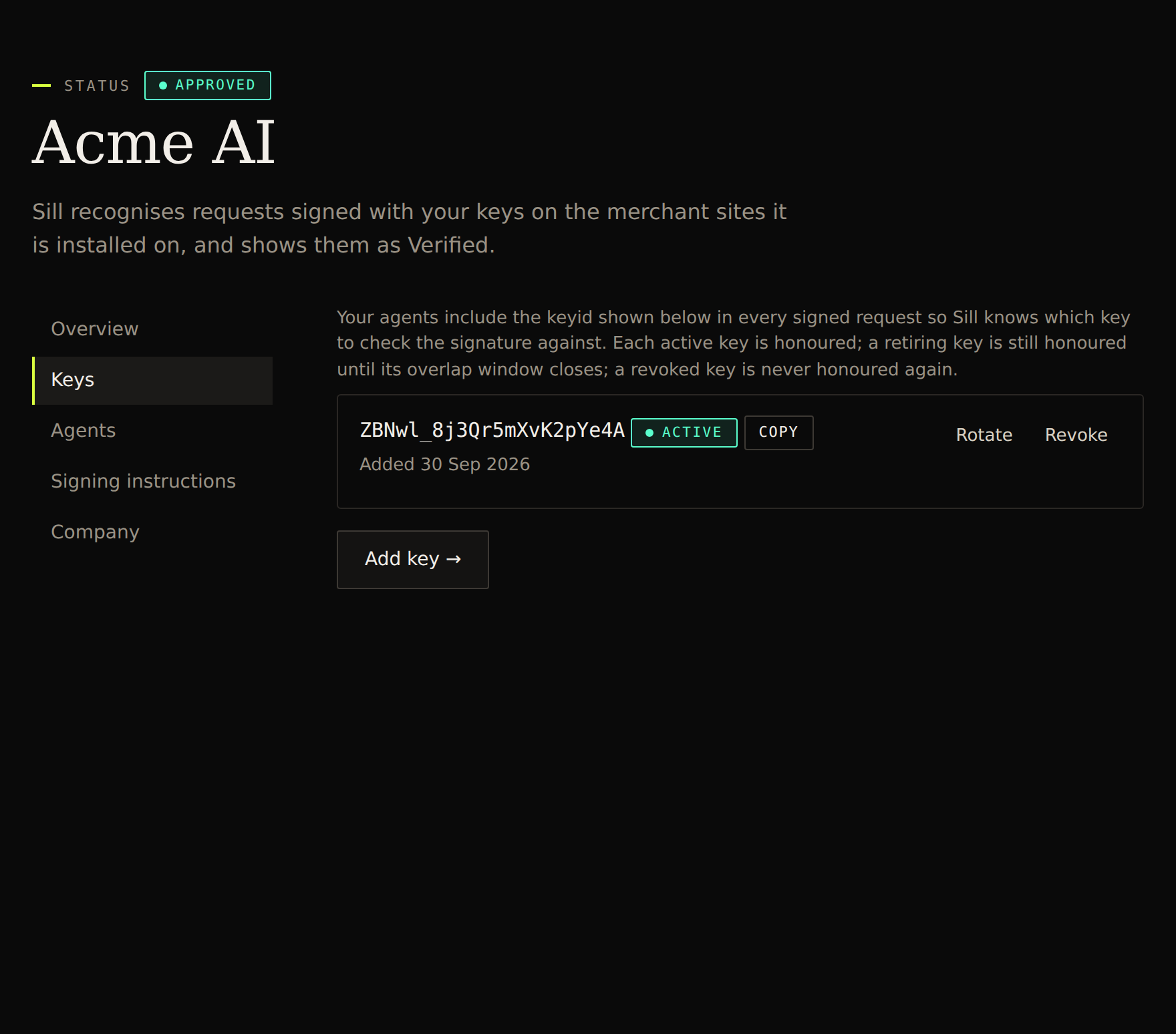 The Keys tab after approval lists each key’s id — the value your agents put in their Signature-Input header.
5. Submit for review
Section titled “5. Submit for review”Select Submit. A person at Sill checks that your domain, your documentation and your agent names belong together. If something needs to change, the enrollment comes back to you with a note, and you can edit it and submit again.
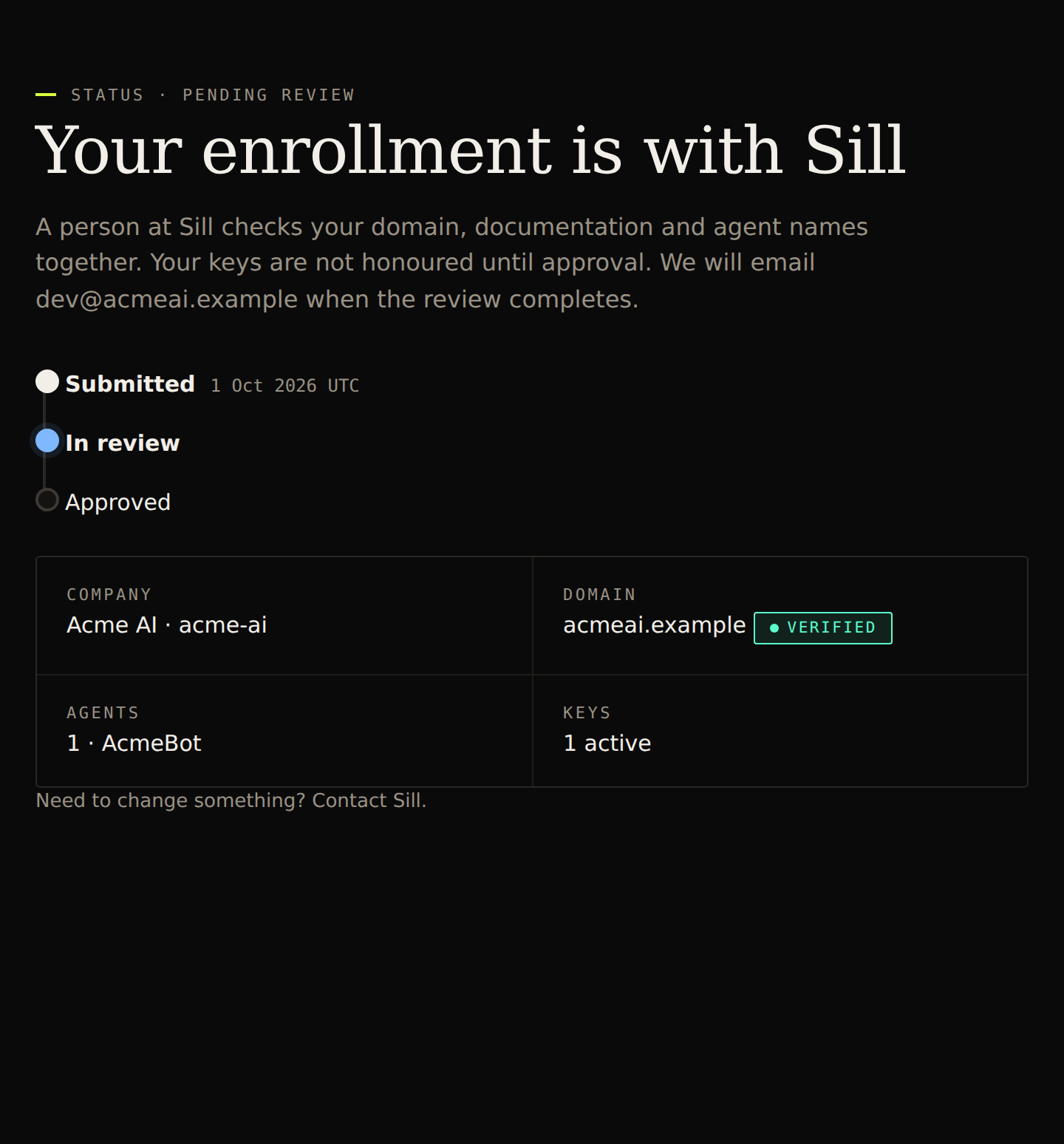 After submission, the enrollment page shows review progress. Your keys are not honoured until Sill approves.
6. Sign your requests
Section titled “6. Sign your requests”Once approved, your keys are published at:
https://edge.sill.so/agents/<short name>/.well-known/http-message-signatures-directoryThis is a standard HTTP Message Signatures key directory, the same format used by Web Bot Auth. Your agents sign requests the usual Web Bot Auth way and point to Sill as the key directory:
Signature-Agent: "https://edge.sill.so/agents/acme-ai"Signature-Input: sig1=("@authority" "signature-agent");created=1791000000;expires=1791000060;keyid="<key thumbprint>";nonce="<random value>";alg="ed25519";tag="web-bot-auth"Signature: sig1=:<base64 Ed25519 signature>:Keep signatures short-lived (a few minutes) and give each one a fresh nonce. When a merchant’s Sill install forwards a signed request from your agent, Sill checks the signature against your published keys and links the visit to your company.
Pass Sill’s live identity check
Section titled “Pass Sill’s live identity check”On Sill’s own agent endpoints at edge.sill.so (the agent card, the MCP server and the agent-to-agent mandate endpoint), your agent can also prove who it is with a fresh challenge from Sill. A copied signature cannot pass, because each challenge works once.
-
Ask for a challenge:
POST https://edge.sill.so/v1/agent-challengeThe response contains a
nonce, its expiry (about two minutes) and the components to sign:{"nonce": "sch1.…","expires_at": "2026-10-08T12:02:00.000Z","authority": "edge.sill.so","covered_components": ["@method", "@authority", "@path", "signature-agent"]} -
Make your real request to the agent card, MCP or mandate endpoint, signed over the method, host and path, with the challenge as the
nonce:GET /v1/agent-card/<site key>.json HTTP/1.1Host: edge.sill.soSignature-Agent: "https://edge.sill.so/agents/acme-ai"Signature-Input: sig1=("@method" "@authority" "@path" "signature-agent");created=…;expires=…;keyid="<key thumbprint>";alg="ed25519";nonce="sch1.…";tag="web-bot-auth"Signature: sig1=:<base64 Ed25519 signature>:@pathis the path without the query string. The signature may be valid for at most five minutes. -
Read the
Sill-Agent-Credentialresponse header:Value Meaning challenge_passedThe challenge was signed with one of your keys. signature_verifiedThe signature checked out with your own nonceinstead of a Sill challenge.replayedThat nonce was already used. Ask for a new challenge. challenge_expired/challenge_invalidThe challenge is too old, was altered, or was issued for a different host. invalid/unknown_key/expiredThe signature did not check out, used a key that is not active, or had expired. not_enrolledThe short name is not an approved enrollment. unsupported/malformedThe signature does not cover the required components or could not be read. unavailableSill could not check the signature this time. The response itself is unaffected.
The challenge is optional. Requests without a Signature-Agent pointing to Sill are handled exactly as before, and the check never changes the status or body of the response you asked for.
What merchants see
Section titled “What merchants see”When a request carries a valid signature from one of your keys and the name in its User-Agent is one you registered, Sill can label it Verified and explain that it was signed with a key your company registered with Sill (or that it passed Sill’s live identity check). A signed request that uses a name you did not register is not treated as proof of that name. A request signed with your keys that uses a name another enrolled company registered is shown as a likely impersonation of that name. See Trust labels and disputes for how merchants read these labels.
Check your key history
Section titled “Check your key history”Anyone can read the history of your keys:
https://edge.sill.so/agents/<short name>/key-logEach entry records a key being added, retired or revoked, or the enrollment being approved or suspended, with the time. Entries are chained: each one includes the hash of the one before, so a changed or removed entry breaks every hash after it. The response describes exactly how each hash is computed, so you can recompute the chain yourself and compare the latest hash with one you saved earlier.
Troubleshooting
Section titled “Troubleshooting”- The DNS check says the value was not found. Make sure the record is a TXT record at
_sill-agent-verify.<your domain>(not at the bare domain), and wait for DNS to update. - The HTTPS check cannot reach your domain. The file must be served over HTTPS from a public address, without a redirect.
- A name is already registered. Another company registered it first. Contact Sill if you believe the name is yours.
- Your signatures are not recognised. Check that the enrollment is approved, the key is listed in your directory, the
keyidis the key’s thumbprint, and the signature has not expired.