Install the Sill Cloudflare Worker
The Sill Cloudflare Worker is the one install that covers the browser, crawler and discovery-file layers on any site: it sees every request to your site, including AI crawlers that never run JavaScript, serves your agent card and discovery files on your own domain, and adds the embed script to your pages. It also proves you own the domain.
The Worker runs on Cloudflare, in front of your server. If your site is already behind Cloudflare, go straight to Step 4. If not, Steps 1–3 put it there. Cloudflare’s free plan is enough, and your host stays where it is.
Step 1 — Add your domain to Cloudflare
Section titled “Step 1 — Add your domain to Cloudflare”- Create an account at dash.cloudflare.com/sign-up.
- Add your domain (for example
example.com) and choose the Free plan. - Cloudflare imports your existing DNS records. Check that the records for your website (usually
example.comandwww) are in the list. Leave everything else as it is.
Step 2 — Point your domain at Cloudflare
Section titled “Step 2 — Point your domain at Cloudflare”Cloudflare gives you two nameservers (names like ada.ns.cloudflare.com).
- Sign in where you bought your domain (your registrar).
- Find the nameserver setting for your domain.
- Replace the existing nameservers with the two from Cloudflare and save.
- Back in Cloudflare, wait for the domain to show as active. This usually takes minutes and can take up to a day.
Your site keeps working during the change; only the service that answers DNS lookups changes.
Step 3 — Turn the orange cloud on
Section titled “Step 3 — Turn the orange cloud on”In Cloudflare, open DNS → Records. The records that serve your pages must show an orange cloud (Proxied). If one shows a grey cloud, edit it and turn Proxy status on. A grey-cloud record bypasses Cloudflare, so the Worker never runs for it.
If How Sill is installed shows Turn the orange cloud on, this is the step it means.
Step 4 — Create a Cloudflare API token
Section titled “Step 4 — Create a Cloudflare API token”Sill deploys the Worker for you with an API token that you create.
-
Open dash.cloudflare.com/profile/api-tokens/create (Sill’s Create API token on Cloudflare link opens the same page).
-
Create a custom token and give it a name, for example
Sill Worker. -
Add these three permissions:
Category Resource Level Account Workers Scripts Edit Zone Zone Read Zone Workers Routes Edit -
Set Zone Resources to All zones, or to the specific zone for your domain.
-
Create the token and copy it. Cloudflare shows it only once.
Step 5 — Paste the token in Sill and deploy
Section titled “Step 5 — Paste the token in Sill and deploy”- In Sill, open Settings → Install. Under Install Sill on your site → CLOUDFLARE WORKER, paste the token into API TOKEN. (During onboarding, the same field is on the Cloudflare Worker install tab.)
- Click Deploy Worker (in onboarding: Deploy Cloudflare Worker).
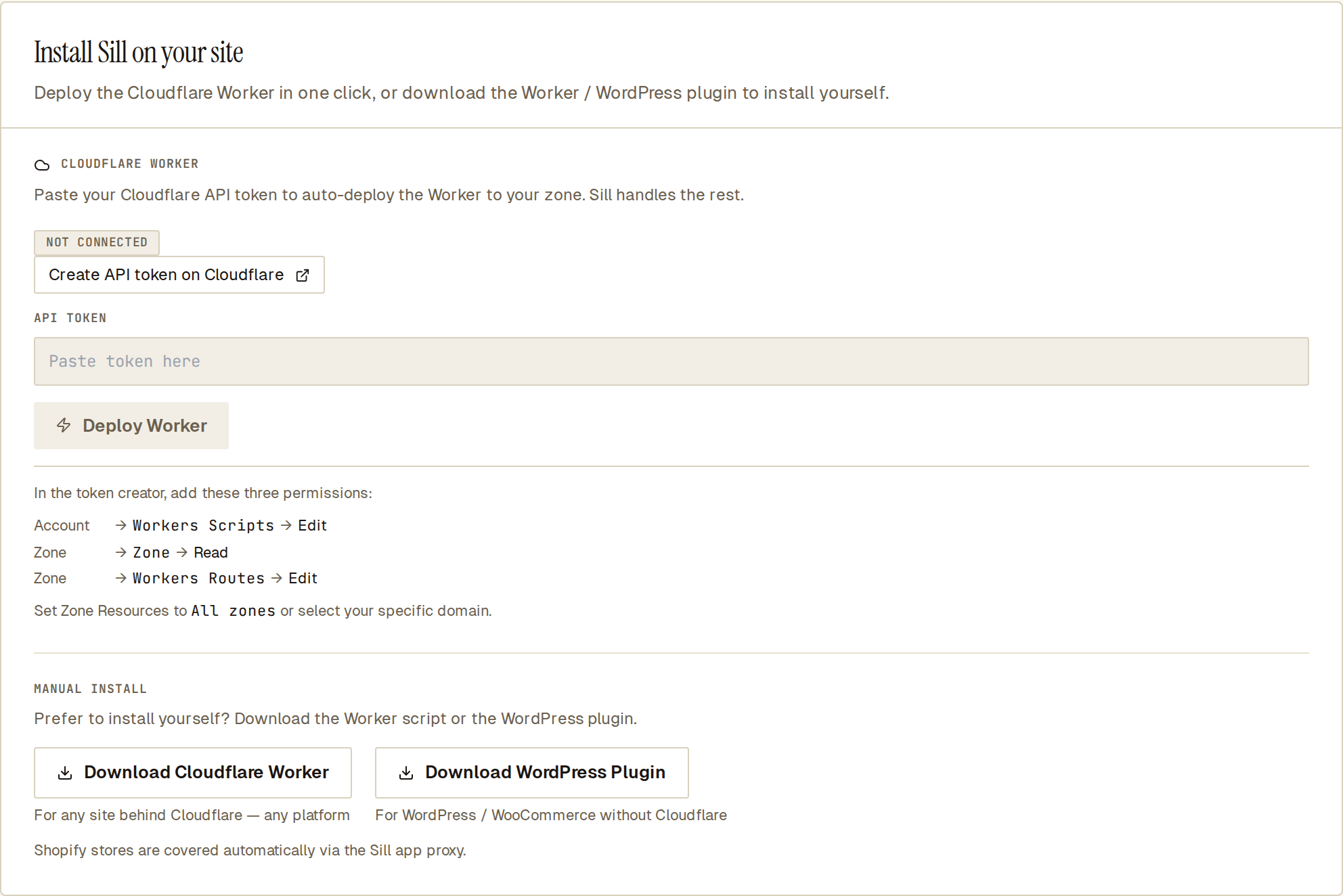 Paste the token, then deploy. The permissions Sill needs are listed under the button.
Sill checks the token, finds your domain in your Cloudflare account, uploads the Worker and adds two routes, example.com/* and www.example.com/*. The panel then shows WORKER ACTIVE with your zone and the deploy time. A successful deploy also verifies your domain, so there is nothing to paste on your site.
Sill keeps the token, encrypted, so you can click Redeploy later or Disconnect Cloudflare, which removes the Worker. Only owners and admins see these controls.
If the deploy fails
Section titled “If the deploy fails”| Message | What to do |
|---|---|
| Token invalid — check it has the required permissions. | A permission is missing or the token was copied incompletely. Create a new token with all three permissions from Step 4. |
| This token is valid, but this domain isn’t in your Cloudflare account. | The domain is not active in the Cloudflare account the token belongs to, or Zone Resources excludes it. Finish Steps 1–2, or widen Zone Resources. |
| Could not deploy Cloudflare Worker (onboarding) or Could not connect Cloudflare (Settings) | Cloudflare refused the upload or did not answer. Check that the token still exists in Cloudflare and try again. |
Check that it worked
Section titled “Check that it worked”Open https://example.com/.well-known/sill-proof.txt (with your domain). A short token means the Worker is running.
In Sill, Settings → Install → How Sill is installed turns live layer by layer: Crawlers that skip JavaScript after the first crawler request, Visitors & browser agents after the first page view, and Agent card & files once Sill re-checks your domain. Click RE-CHECK to refresh.
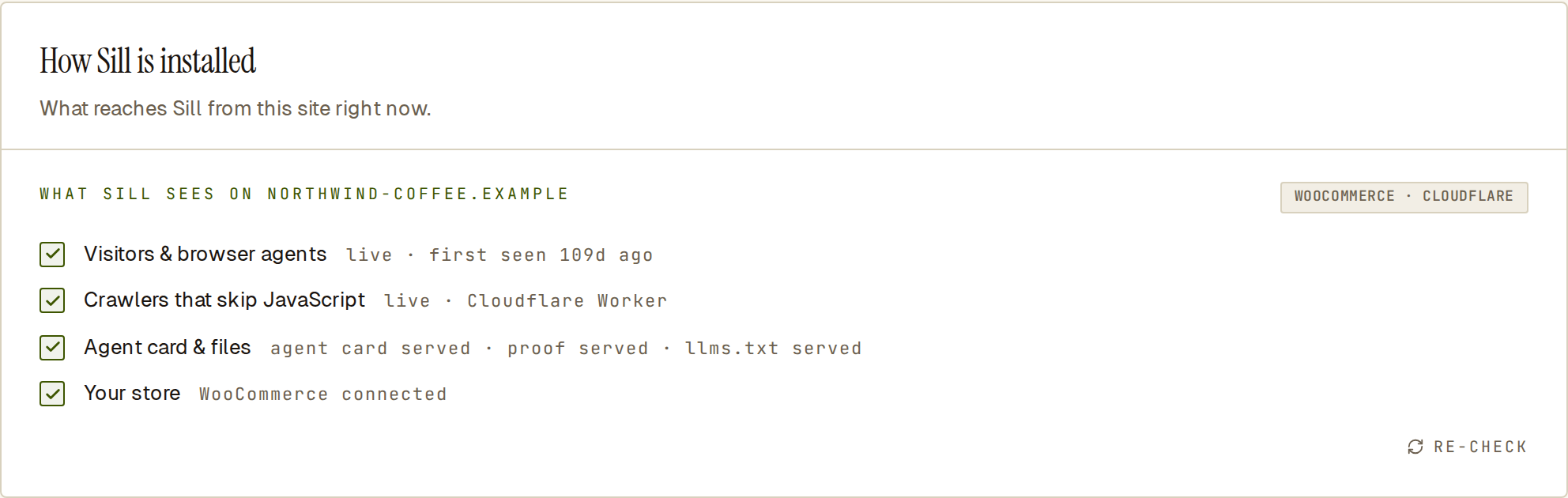 Every layer live. The crawler row names the Cloudflare Worker as its source.
What the Worker does
Section titled “What the Worker does”- Records every request from crawlers and agents, with Cloudflare’s bot verification, and passes Web Bot Auth signatures to Sill to check when an agent signs its request. Ordinary browser visits are not sent to Sill by the Worker; the embed script counts those.
- Adds the embed script to every HTML page, unless the page already has one.
- Serves the discovery files on your domain:
/.well-known/agent-card.json,/.well-known/sill-proof.txt,/.well-known/ucp,/.well-known/mcp/server-card.json,/.well-known/ai-catalog.json(your signed ARD catalog;/ai-catalog.jsonanswers at the same place for older clients),/.well-known/api-catalog(an RFC 9727 linkset to your card, MCP server and catalog),/llms.txtand/agent. - Passes every other request through to your site unchanged.
What the Worker sends to Sill
Section titled “What the Worker sends to Sill”For each request from a crawler or agent, Worker version 2026-10-06.1 sends Sill:
- The page path and query, the user agent, and the visitor’s address as Cloudflare sees it.
- The network the request came from (its network number and owner name).
- Connection details Cloudflare observed: the HTTP protocol, the encryption version and cipher, and short fingerprints of how the client opened the encrypted connection, plus the network round-trip time.
- The names of the request headers (names only, never their values), and the values of the
Accept,Accept-Language,Accept-EncodingandFromheaders, shortened. - Whether browser fetch-metadata headers (
Sec-Fetch-*) were present. - The response status your site returned.
- Cloudflare’s bot score, verified-bot flag and client fingerprints, only when your Cloudflare plan includes Bot Management.
Ordinary browser visits are still not sent. For agent analysis Sill stores the network block an address belongs to and a keyed fingerprint of the address (one that cannot be turned back into the address without a key only Sill holds), not the address itself; these are removed through Sill’s data-retention process. The visit record itself still holds the full address until that process removes it from older records.
Signed reports and install keys
Section titled “Signed reports and install keys”Each Worker you deploy or download gets its own key, and the Worker signs every report it sends to Sill with it, so Sill can tell your reports apart from anyone else’s.
- Deploying, redeploying or downloading again issues a new key. The previous key keeps working, so the Worker already running is not interrupted. At most two keys are active; the oldest is retired when a third is issued.
- To see or revoke keys, open Settings → Install and find INSTALL KEYS below MANUAL INSTALL. Revoke a key once the file that used it is no longer deployed. Only owners and admins see these controls.
- A Worker whose key is revoked, or an older Worker without a key, keeps working. Sill still records its reports; they are just not marked as coming from your install.
Because a downloaded Worker file contains its key, keep it private: don’t commit it to a public repository or share it.
Update the Worker
Section titled “Update the Worker”Older Workers keep working, but only the current version sends the details above and signs its reports.
- Deployed with a token: open Settings → Install and click Redeploy.
- Installed by hand: download the Worker again and replace the code in Cloudflare (see below), then revoke the old key under INSTALL KEYS.
Install the Worker yourself, without a token
Section titled “Install the Worker yourself, without a token”If you would rather not give Sill a token, deploy the same Worker by hand. Sill cannot redeploy it for you; to update it, download it again and replace the code.
- In Sill, open Settings → Install. Under MANUAL INSTALL, click Download Cloudflare Worker. The file,
sill-agent-ready-worker.js, already contains your site’s key, domain proof and its own report-signing key. - In Cloudflare, create a Worker, replace its code with the full contents of
sill-agent-ready-worker.js, and deploy it. - Add two routes to the Worker on your domain’s zone:
example.com/*andwww.example.com/*. - Open
https://example.com/.well-known/sill-proof.txt. If it shows a short token, the Worker is live. - If the site is not verified yet, open the Script tag tab in Sill’s onboarding and click Verify. The check also reads
/.well-known/sill-proof.txt, so there is nothing to paste.
The Worker needs no environment variables, secrets or bindings. The DNS records for your pages must still be orange-clouded (Step 3).
Cloudflare settings you can leave alone
Section titled “Cloudflare settings you can leave alone”- Caching. The Worker runs before Cloudflare’s cache, so cached pages are still seen.
- SSL/TLS. If your site shows a redirect loop after moving to Cloudflare, set the SSL/TLS encryption mode to Full.
- Email. Mail (MX) records are not proxied and keep working.