Business skills
Business skills are seven built-in skills that answer an AI agent with a link to the right page on your site: your pricing page, sign-up page, demo request page, booking link, support page, status page or trust center. They suit software and service sites, and stores can use them too. You add one URL per skill in the dashboard; nothing to build or host.
Each business skill only returns a link. It does not submit forms, collect personal details from the buyer or need a signed mandate. The agent gets the URL and passes it to the person it is helping.
Which business skills exist
Section titled “Which business skills exist”| Name | skill_id | What the agent gets back |
|---|---|---|
| Get pricing | get_pricing | Your pricing page URL and your list of plans, if you added any. |
| Request a demo | request_demo | Your demo request page URL. |
| Sign up | sign_up | Your sign-up or free-trial page URL, or a plan’s own sign-up link when the agent asks for that plan. |
| Book a meeting | book_meeting | Your meeting booking link. |
| Contact support | contact_support | Your support or contact page URL. |
| Get status | get_status | Your status page URL. |
| Get trust center | get_trust_center | Your trust, security or compliance page URL. |
The skill_id is the tool name in your MCP server and the skill id on your agent card. These ids are reserved, so you cannot create a custom skill with the same id.
Set up a business skill
Section titled “Set up a business skill”You need the owner or admin role. Reviewers and viewers see the list but cannot change it (see Users and roles).
- Open Settings in the top navigation, with the right site selected in the site switcher (see Site settings).
- Open the Skills tab and scroll to Business skills, below the default skills.
- On the skill’s row, click Add URL (or Edit URL), enter an
https://URL and click Save. - Turn on the toggle on the right of the row. The toggle stays disabled until the row has a URL.
The row’s pill changes from OFF to LIVE. Your agent card updates within a minute.
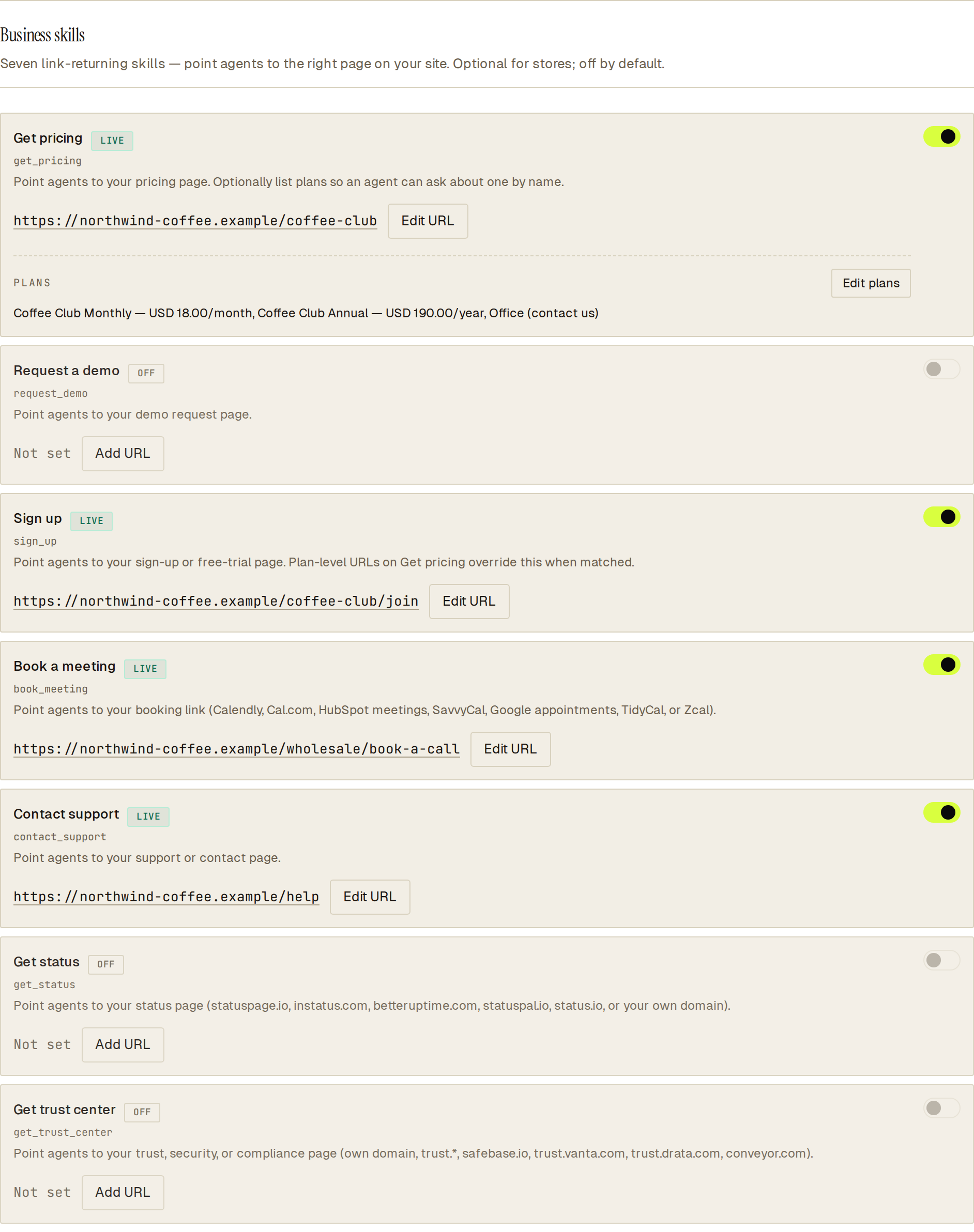 Each row has one URL and one toggle; only rows marked LIVE are shown to agents.
All seven skills start off on every site. On a store, the group header notes that business skills are optional.
Use a link Sill found on your homepage
Section titled “Use a link Sill found on your homepage”When you add a site that is not a store, the onboarding Skills step lists the business pages Sill found on your homepage, each with its link filled in and turned off. Turning a row on saves that link and turns the skill on. See Sites and onboarding.
In Settings, when Sill’s scan of your site finds a matching page, such as a pricing, demo, sign-up, contact, booking, status or trust page, a row with no URL shows it under Found on your homepage. Click Use this to save that URL and turn the skill on in one step. Nothing is saved until you click.
On a site that is not a store, the Agent readiness page can also show a step titled “Let agents send people to your pricing, demo, sign-up and booking pages” when it found such links and none is live yet. Turn these on saves each found link on its skill and turns the skill on; Review in Skills opens the Skills tab instead.
Turn a business skill off
Section titled “Turn a business skill off”Turn off the row’s toggle. The skill disappears from your agent card and MCP server, and the saved URL stays in place for when you turn it back on.
Which URLs are allowed
Section titled “Which URLs are allowed”Every URL must start with https:// and be at most 2,048 characters. Your own domain includes www. and any subdomain, so https://status.example.com counts as on-domain for example.com.
| Skill | Allowed URLs |
|---|---|
| Get pricing, Request a demo, Sign up, Contact support | Any https:// URL. A URL that is not on your domain still saves, with a warning that it is not on your domain. |
| Get trust center | Any https:// URL. No warning for your own domain, any trust. host (such as trust.example.com), safebase.io, trust.vanta.com, trust.drata.com or conveyor.com; other hosts save with the same warning. |
| Book a meeting | Your own domain, or one of these booking hosts: calendly.com, cal.com, meetings.hubspot.com, savvycal.com, calendar.app.google, calendar.google.com (appointment pages under /calendar/appointments/ only), tidycal.com, zcal.co. Other hosts are refused. |
| Get status | Your own domain, or one of these status hosts: statuspage.io, status.io, instatus.com, betteruptime.com, statuspal.io. Other hosts are refused. |
Subdomains of the listed hosts are accepted too, for example yourcompany.statuspage.io. Email links (mailto:) are not accepted for Contact support; link to a contact page instead.
If a save is refused, the row says why, for example “URL must use https://” or “Booking URL must be on an allowed host … or on your own domain.”
Add plans to Get pricing
Section titled “Add plans to Get pricing”Get pricing can carry a short list of your plans, so an agent asked “what does the Pro plan cost?” can answer with that plan instead of only the pricing page.
- Save your pricing page URL on the Get pricing row first; plans are stored with it.
- On the Get pricing row, under Plans, click Add plans (or Edit plans).
- Click Add plan and fill in the plan:
- Plan name, up to 80 characters.
- Price: choose Amount and enter a decimal price (for example
19.00) and a 3-letter currency code (for exampleUSD), or choose Contact us. - Billing period: per month, per year, one-time or custom.
- A short description (optional, up to 140 characters).
- A sign-up link for this plan (optional,
https://).
- Repeat for each plan, up to 10. Use Remove to delete one.
- Click Save plans.
Plans are saved as a whole list, in the order you enter them. You type every plan yourself; Sill does not read prices from your site.
How agents use business skills
Section titled “How agents use business skills”An enabled business skill appears in the same places as your other live skills:
- your signed agent card, as a skill with its name and description;
- your MCP server, as a tool in
tools/list; - your
llms.txt, under Agent Capabilities (MCP); - your
/agentpage, under Available capabilities.
A skill that is off, or has no URL, appears in none of them.
When an agent calls a business skill through MCP tools/call, it gets a short text line and the same data as structuredContent, including the url. For example, Book a meeting returns Book a meeting: https://example.com/book.
Get pricing and Sign up take an optional plan argument:
{ "name": "get_pricing", "arguments": { "plan": "pro" } }- Get pricing without
planreturns the pricing page URL and every plan. Withplan, it matches your plan names regardless of case: first an exact match, then a name that starts with the text, then a name that contains it. A match returns that plan, its sign-up link if set, and the pricing page URL. No match returns the pricing page URL and the full list. - Sign up with a matching
planreturns that plan’s sign-up link when you set one, and your general sign-up URL otherwise.
Each call is recorded in your audit log, like other MCP tool calls.
Check that a business skill is live
Section titled “Check that a business skill is live”- In Settings → Skills → Business skills, the row shows LIVE with the toggle on.
- Wait about a minute, then open your agent card at
https://edge.sill.so/v1/agent-card/{site_key}.jsonand look for theskill_id. - Optionally, open the Live Agent view, which lists the tools your MCP server advertises today.
If a skill does not appear, check that the row has a URL and the toggle is on, and that your domain is verified: the agent card is published once your domain is verified.